Payment Page
The Checkout operates as a Payment Page, giving you more visibility and control over each transaction session.
Each checkout session is identified by a Checkout ID and carries a Checkout Status, allowing you to track the state of the payment page at any point. Idempotency is preserved through the referenceId: if a checkout session already exists for a given reference, the same session will be returned instead of creating a new one.
Payment Method Selection
The method parameter informs the API which payment methods the merchant wants to display for the session. This follows these rules:
| Scenario | Conditions | Behavior |
|---|---|---|
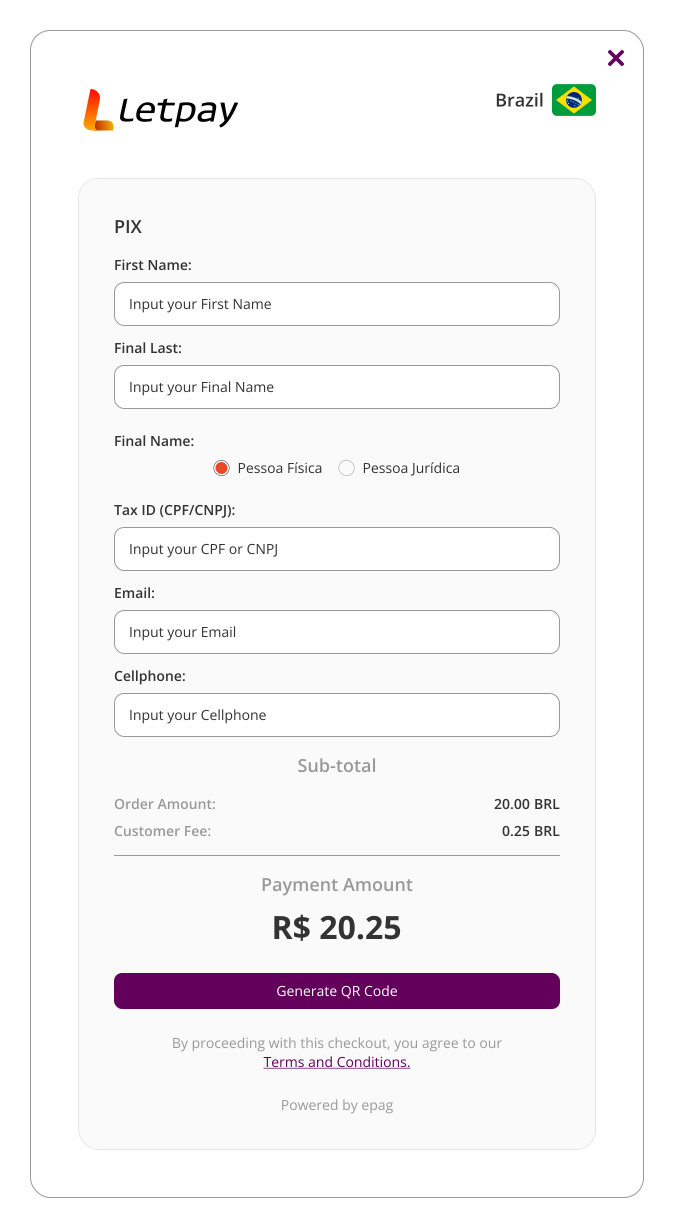
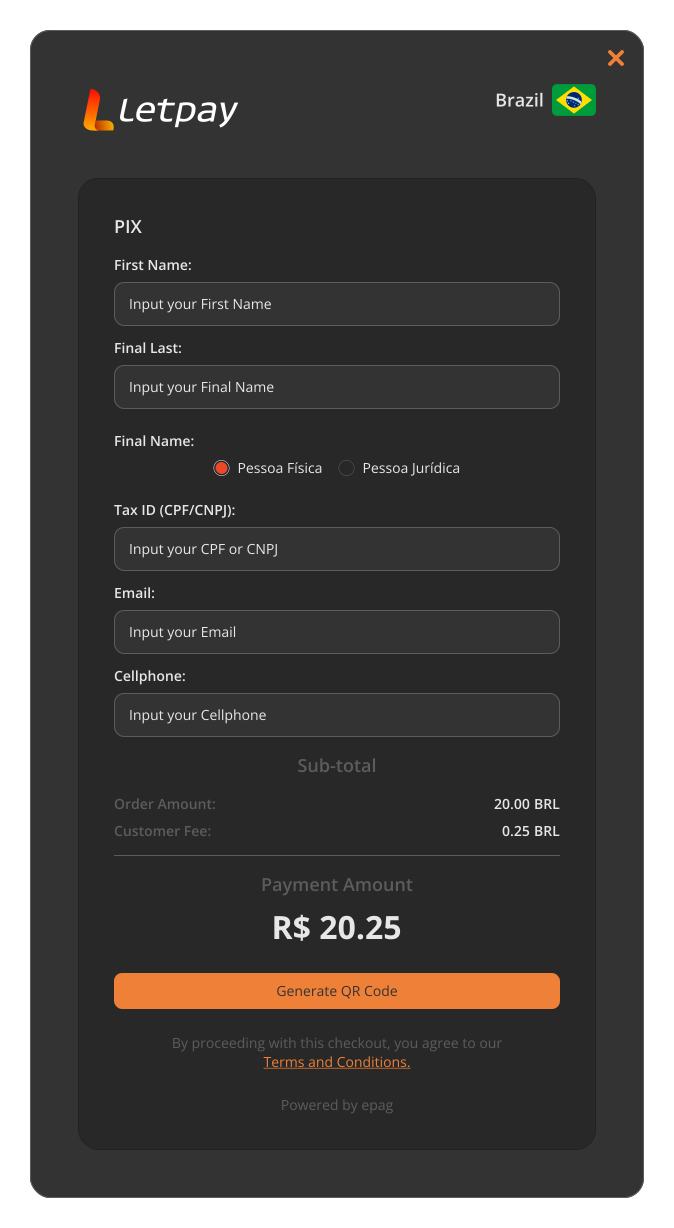
| Single-Method | 1 valid method | Redirects the customer directly to that payment method's checkout — no selection screen shown. |
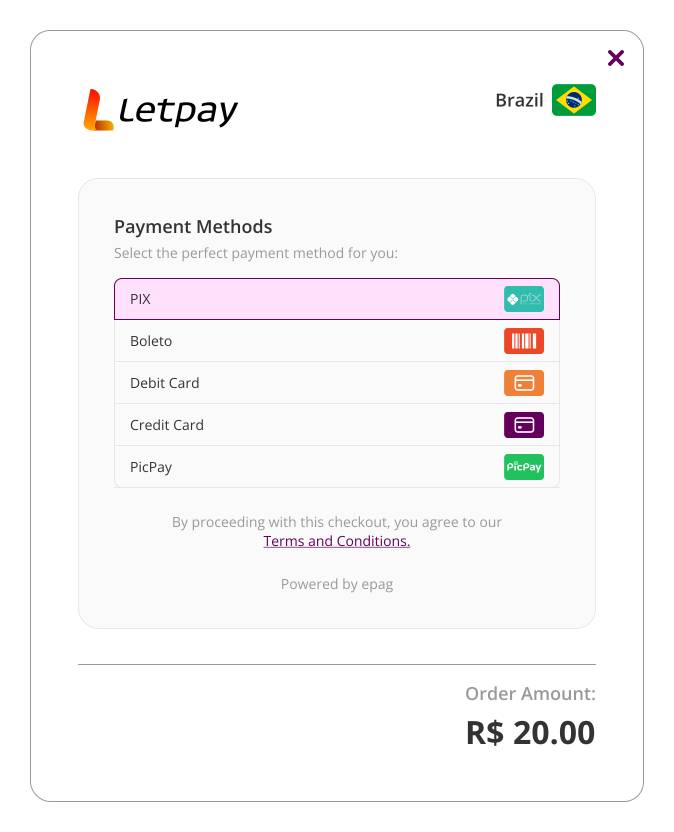
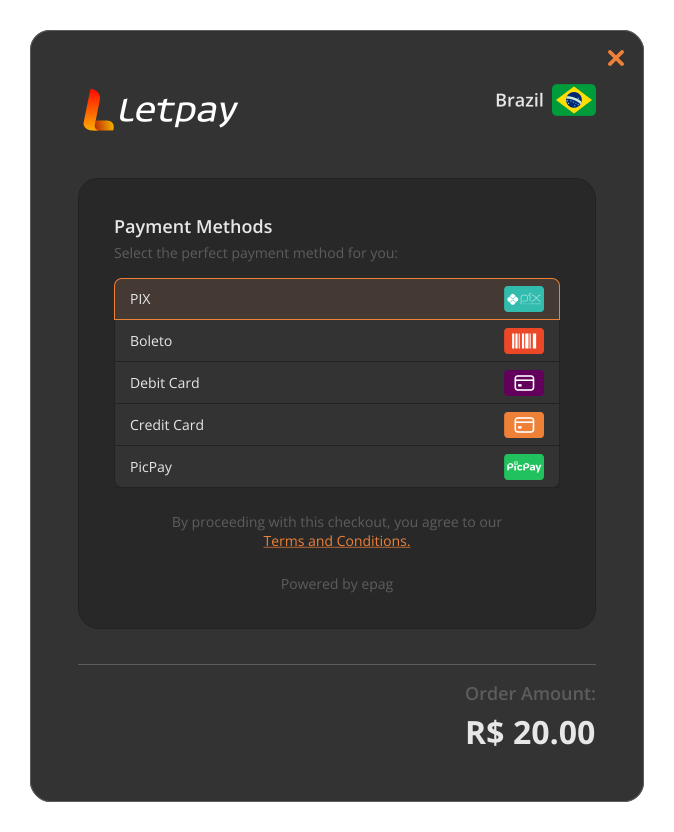
| Multi-Method | More than 1 valid method, or ALL | Loads the Payment Page with a list of payment methods for the customer to choose from. Send an array with multiple methods (example: ["PIX", "CREDITCARD"]) or ALL (example: ["ALL"]) to display all methods enabled in your contract, ensuring that any future methods we support are instantly available to your customers without further code updates. |
| Error | No valid method (not enabled for the merchant) | Returns an error code and a description. |
Methods not enabled in your Contract are automatically omitted from the list. If none of the provided methods are valid, the request will return an error.
To present multiple methods, pass a list of method values or use ALL to display every method available under your Contract.
Single method — direct checkout:
Multiple methods — payment page with method selection:
Changing Payment Methods
A single checkout session can contain multiple payment attempts. Regardless of how many transactions a customer starts, they are all tracked under one Checkout ID. Instead of tracking individual attempts, rely on the Checkout ID status to determine the final outcome of the session.
For synchronous methods (e.g., Credit Card), the customer may also retry the same method multiple times within the same session — for example, after a declined attempt.
The example below illustrates a checkout session where PIX was selected, displaying a QR code. A customer can proceed with this option or simply select a different payment method. Choosing an alternative updates the right-hand panel with the new payment details.
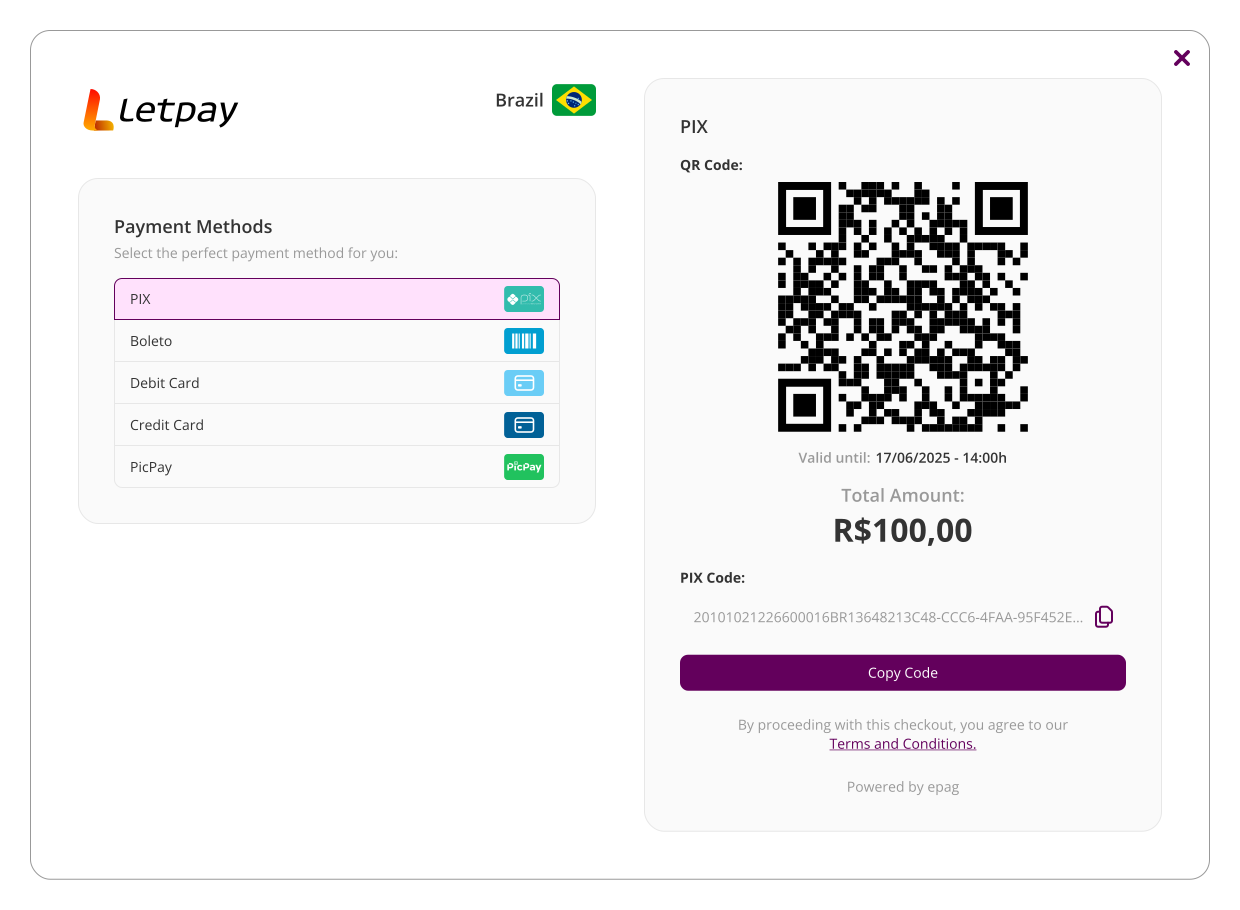
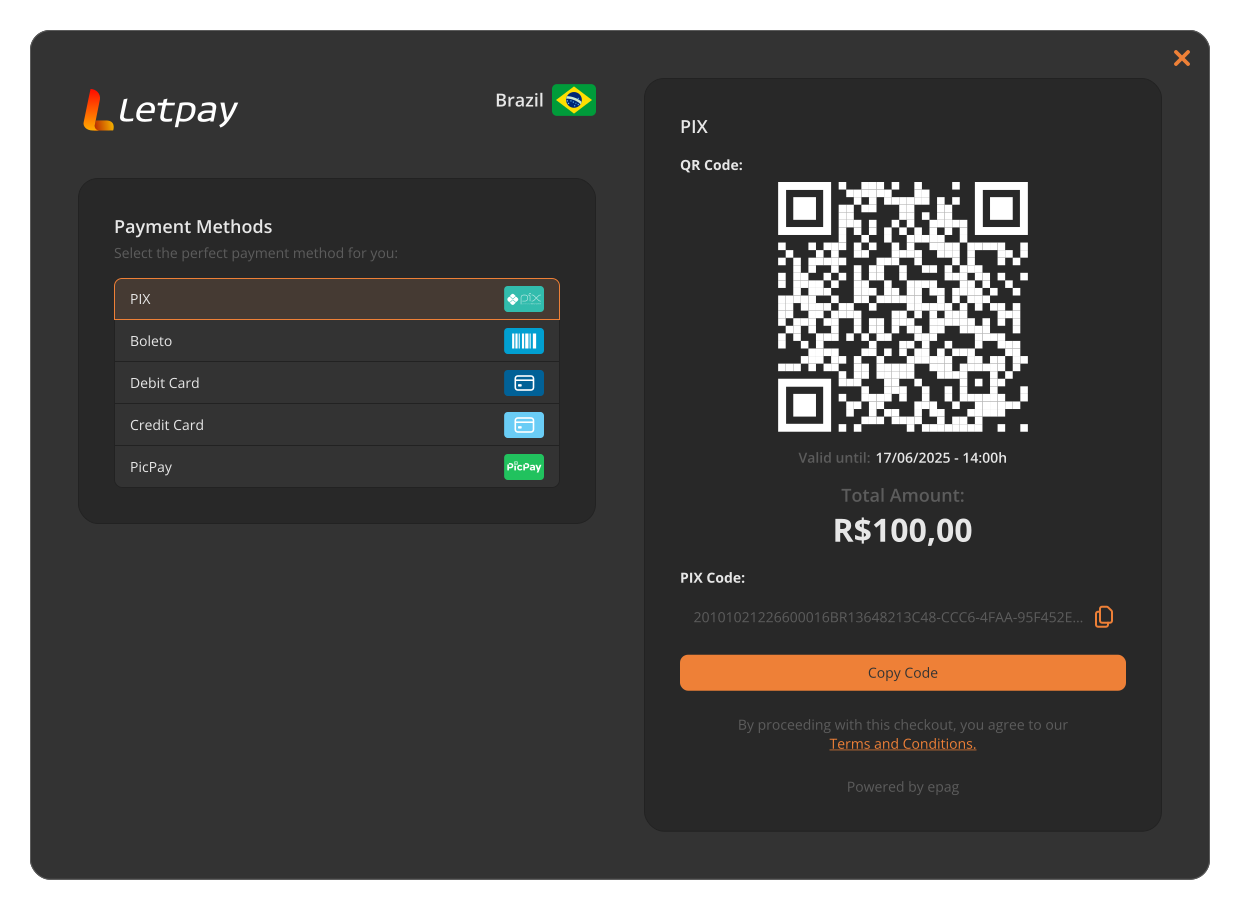
The diagram below illustrates how a single Checkout session can hold multiple payment attempts across different methods, all sharing the same Reference ID:
Checkout Status
From an end-user perspective, this status reflects the current checkout session experience, not just a single payment attempt. A customer can start with one method, fail, switch methods, and retry — while your backend keeps tracking the same Checkout ID.
Each Checkout ID follows this lifecycle:
| Status | Description |
|---|---|
CREATED | The checkout session was initiated and is awaiting customer interaction. |
PROCESSING | A payment attempt is in progress. |
PAID | A payment was successfully completed. |
CANCELED | the session ended without payment completion. This status occurs when all payment attempts initiated during the session have expired, been abandoned, or canceled by the customer, and no successful payment was made. |
ERROR | the session reached a technical/business failure that prevented successful completion. |
Use the Checkout ID as the source of truth for product/order release decisions. Instead of deciding based on each individual transaction attempt, react to checkout status updates (via webhook and/or status query):
Checkout Status Updates
When using the Checkout, two additional fields are available to link the checkout session to your system and receive status updates:
| Field | Type | Description |
|---|---|---|
checkoutNotificationUrl | string | Webhook URL for status updates on the checkoutID associated with this checkout session. |
checkoutReferenceId | string | External reference ID you assign to the checkout session (e.g., your internal order identifier). |
{
  "checkoutNotificationUrl": "https://my.notification.url",
  "checkoutReferenceId": "MY_CHECKOUT_REFERENCE_ID"
}
For implementation details on how status notifications are delivered and how to handle update events, see Status Updates.
- Release access, ship goods, or confirm service only when status becomes
PAID. - Keep the order pending while status is
CREATEDorPROCESSING. - Mark as not completed and trigger retry/recovery flows when status becomes
CANCELEDorERROR.
Embedded checkout (modal): When using the embedded integration, the checkout opens as a modal overlay within your page. For the best user experience, ensure your page allows the lightbox to render as a full-screen overlay, avoiding scroll or z-index conflicts with other DOM elements.